

AdviserHUB – Let’s get started

In this article
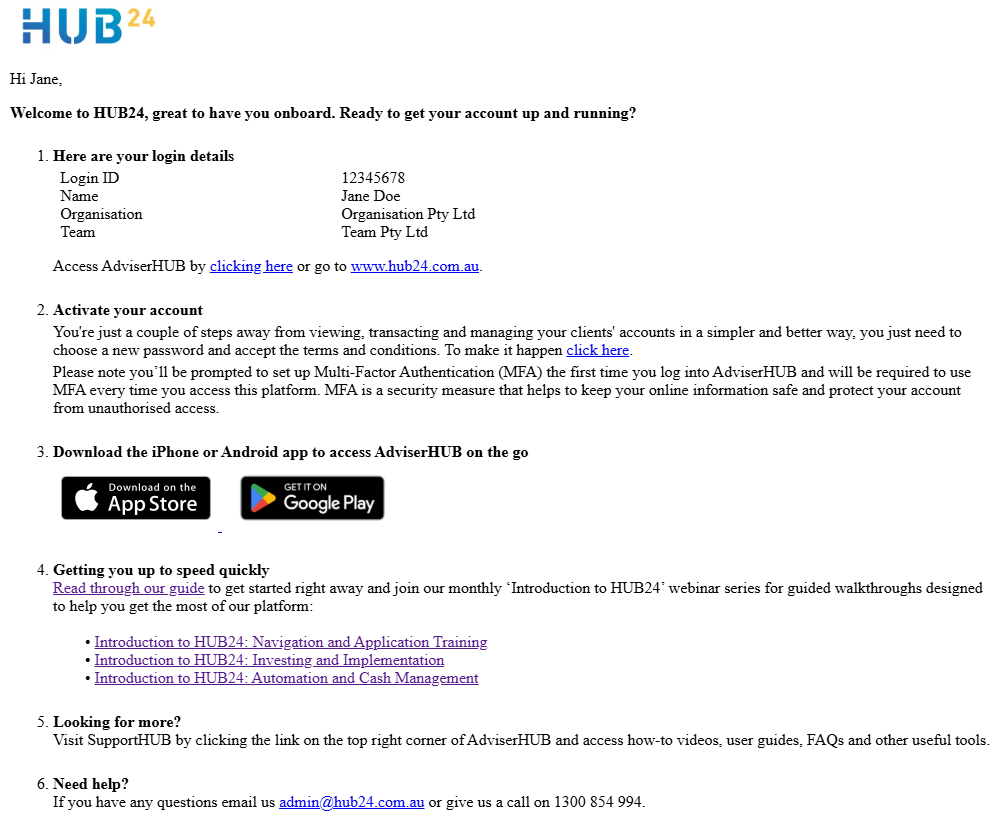
Welcome to HUB24
In your welcome email, you will have recieved:
- Your Login ID
- A URL to activate your AdviserHUB Login ID
Activate AdviserHUB
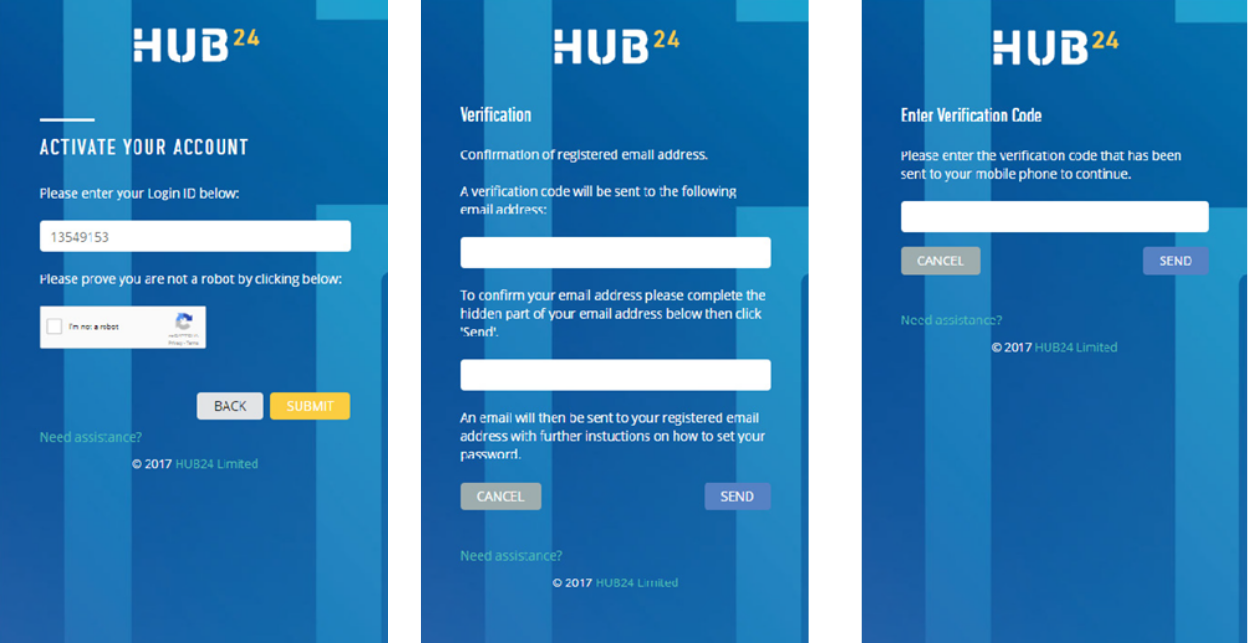
- Click on your URL to activate your AdviserHUB login.
- Follow the prompts under the ‘Verification’ page. A verification code will be sent to you either via SMS or email.
- Enter your verification code. You’ll then be prompted to setup your AdviserHUB password.
- You’re now ready to start working with us!
Note: You’ll be prompted to set up Multi-Factor Authentication (MFA) the first time you log into AdviserHUB and will be required to use MFA every time you access this platform. MFA is a security measure that helps to keep your online information safe and protect your account from unauthorised access.
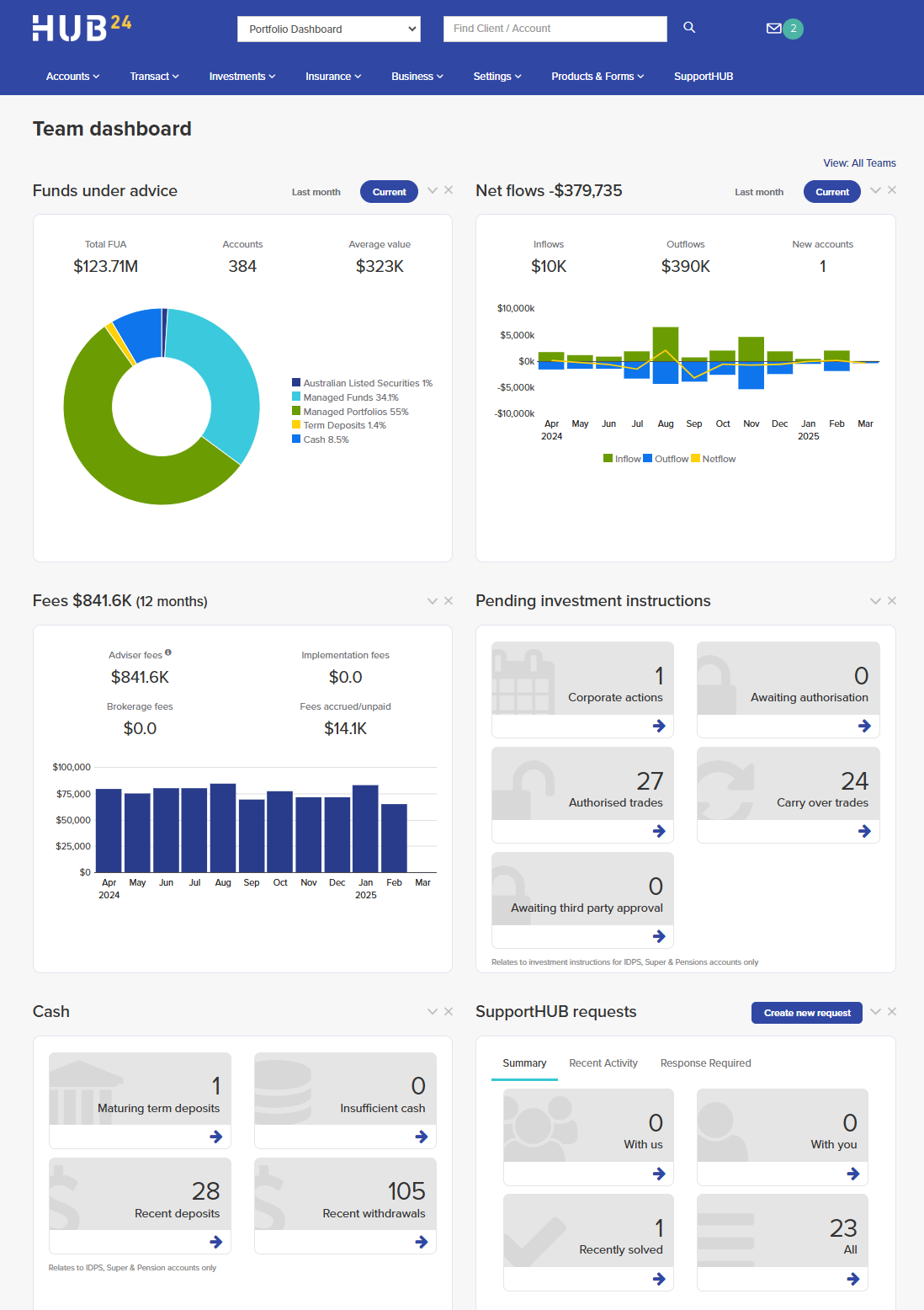
Your home page and business snapshot
View a snapshot of your business including funds under advice; fees; recently accessed accounts; your most active clients; messages/notifications and more.
Watch the Dashboard Overview video or check out the quick start guide.
Set up a new account
Go to Accounts > Applications, select the Product (IDPS, Super or Pension), then click Create New Application.
Follow the steps of our online application wizard, save and print the application for your client to sign, then email it to us along with the relevant ID forms and rollover and/or inspecie transfer forms where applicable.
- To open super accounts we require certified photo ID or ID form.
- To open IDPS accounts we require the ID form only.
- ID requirements can be located under Products & Forms > Forms, or when you submit via SupportHUB you will be prompted to attach the required ID.
Once everything is checked by us, we’ll activate the account and you’ll be able to start transacting on it via AdviserHUB.
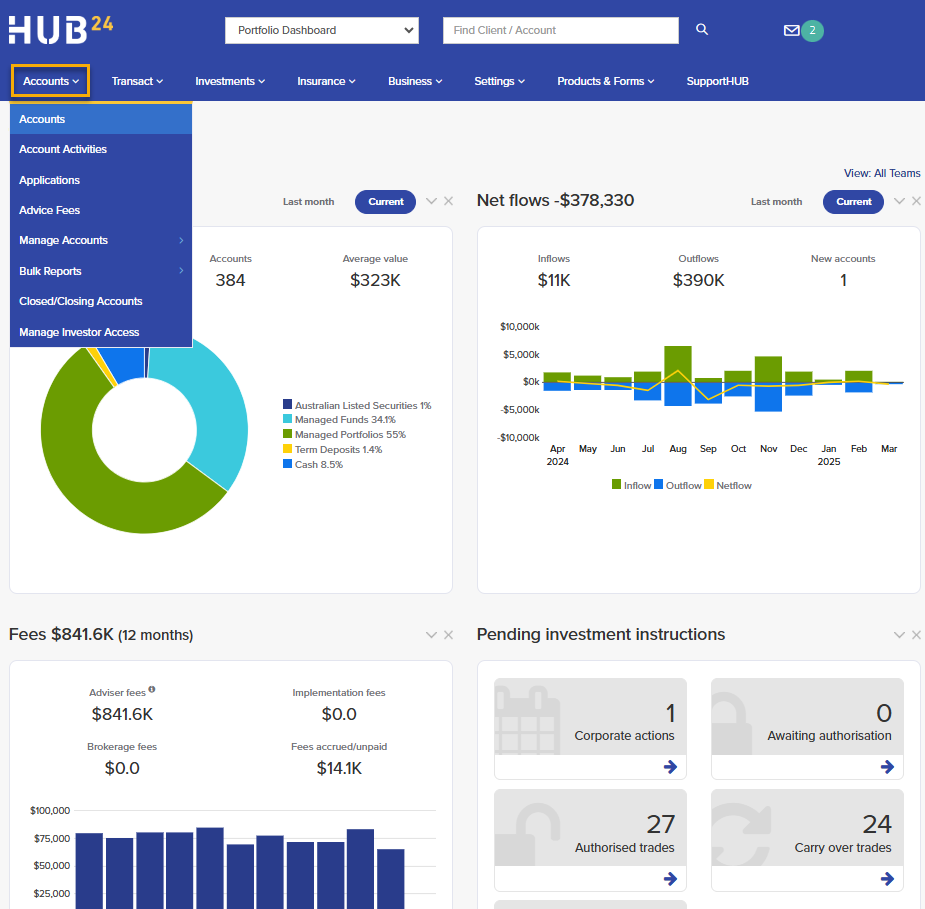
Find your clients easily
Once set up, there are two ways to view client details:
- Use the client search tool at the top (this also displays the last several client accounts you’ve accessed), or
- Select Accounts menu > Accounts.
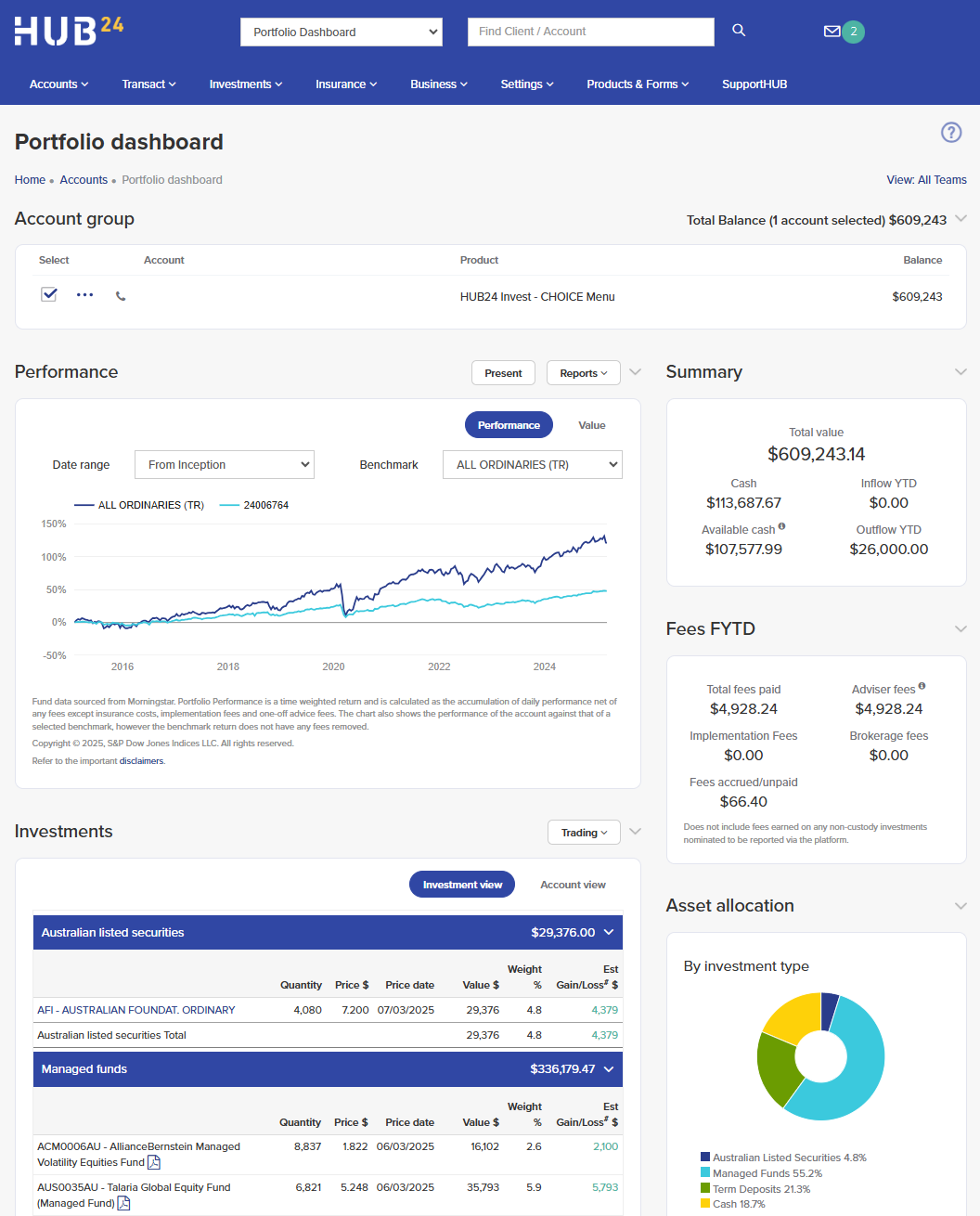
Manage your client accounts
Easily access information on portfolio position by asset type, portfolio performance versus benchmark, and key account figures.
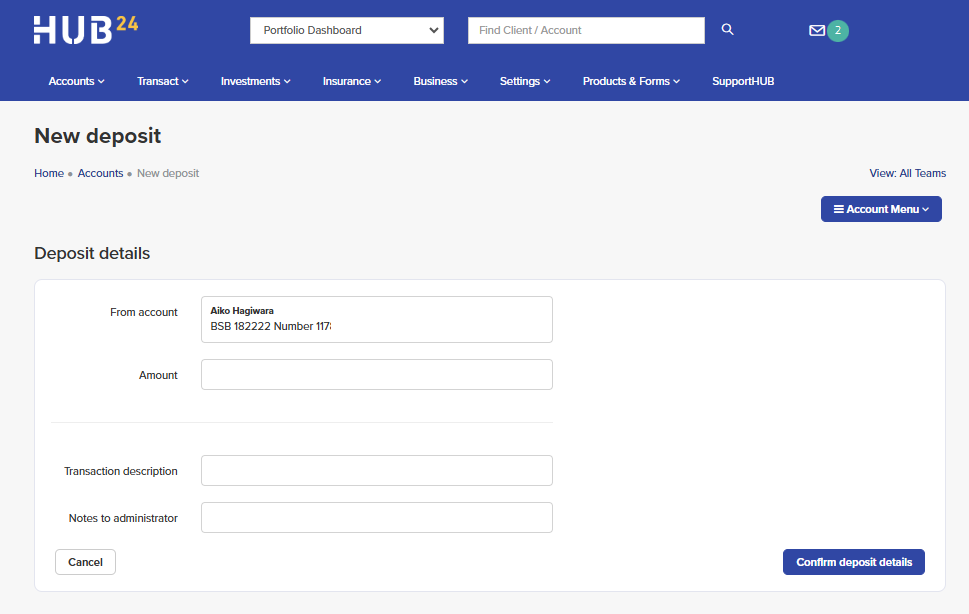
Move money into accounts
Here are the ways you can move money into your client’s accounts:
- A cash deposit initiated by you directly from your client’s nominated bank account
- To do this, your client will need to give you direct debit authority via the application form or the Bank Account Nomination form.
- If you have this authority, hover over the Account menu icon on you client’s Portfolio Dashboard screen (pictured) and select Make a Deposit under the Deposits & Withdrawals heading. Follow the steps to complete the direct debit request.
- Your client can transfer funds to us via BPAY or Electronic Funds Transfer (EFT) – details are in their welcome email.
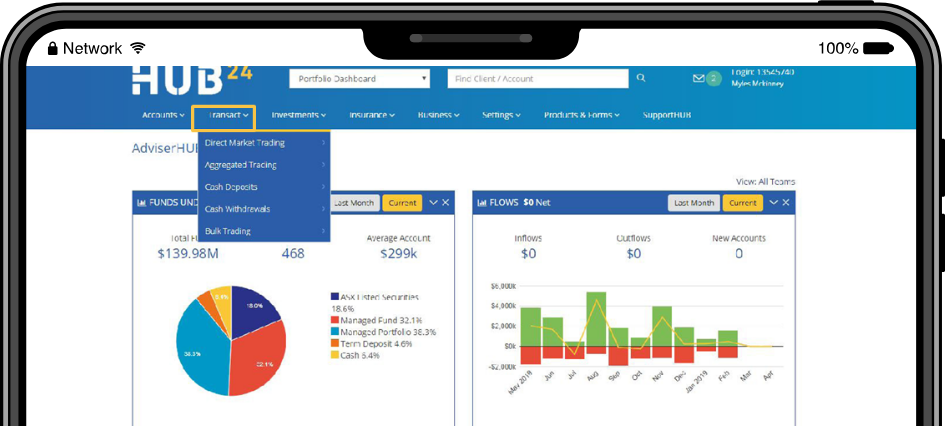
Ready to start transacting
Choose from two methods of transacting on your client accounts. Select Transact > Direct Market Trading or Aggregated Trading.
- Direct market trading (for ASX listed securities):
- Provides real time trading at a nominated price.
- Choose from either ‘Limit’ or ‘Market’ orders.
- Aggregated trading (for Australian or international listed securities, managed portfolios, managed funds and TDs):
- These trades will be combined with other trades received on that day.
- Listed security trades will be executed at VWAP pricing and are netted off to reduce CGT and transaction costs.
- Managed fund trades will be batched to the fund manager the next business day to be executed at the next available unit price (please refer to each Fund manager’s PDS for cut-offs and settlement time frames.
Investors will receive email notifications when trades are completed.
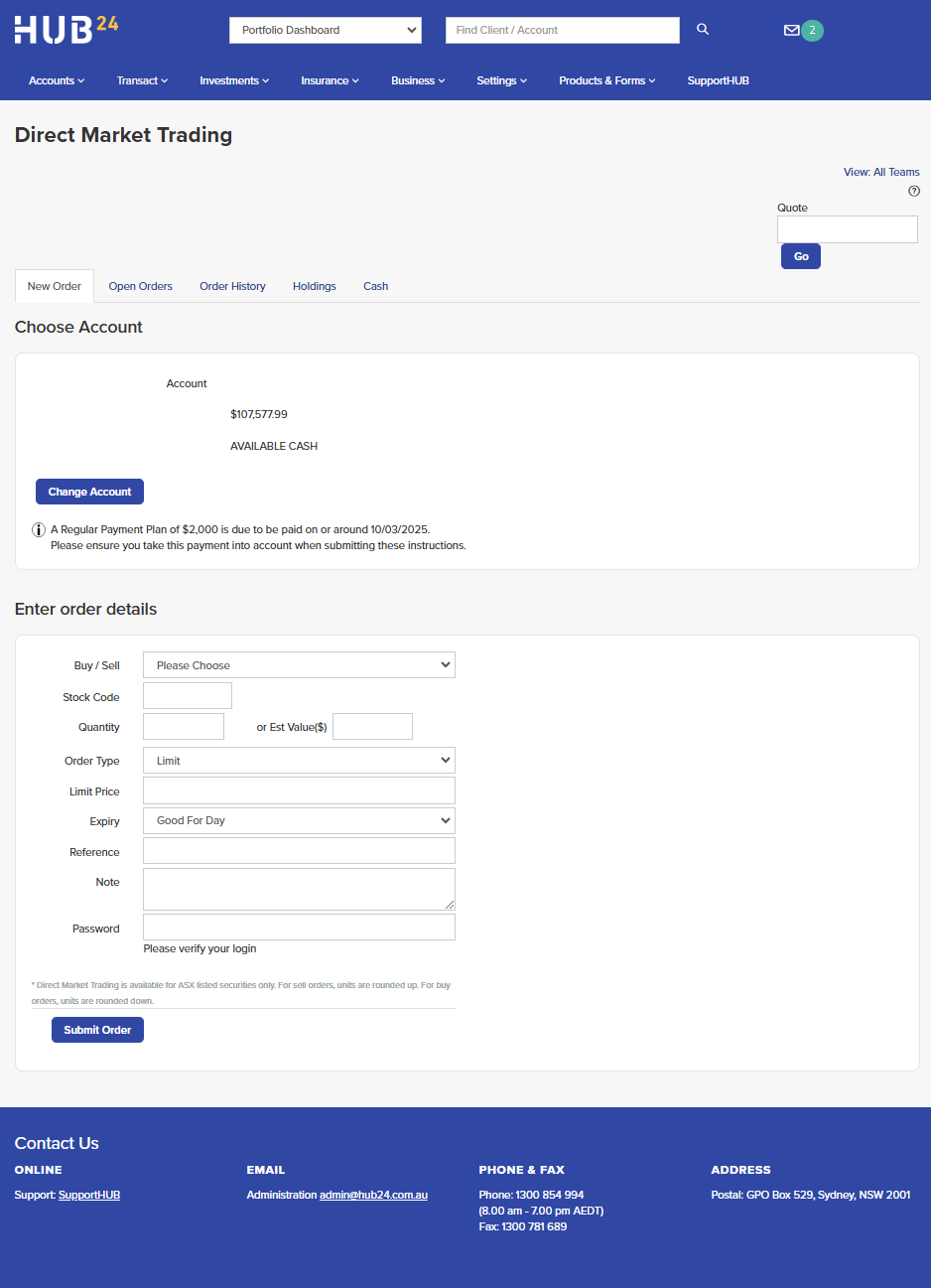
Direct market trading
Complete the details of the trade to be submitted – a buy or sell, stock code, order type, price and quantity, then enter your password and click submit order.
More information: Refer to the Direct marketing trading guides on SupportHUB.
Aggregated trading
The following is an example of investing $5,000 into a managed portfolio from the client’s available cash. Check more details to see if the available cash is cleared or not before submitting the trade.
More information: Refer to the Aggregated trading guides on SupportHUB.
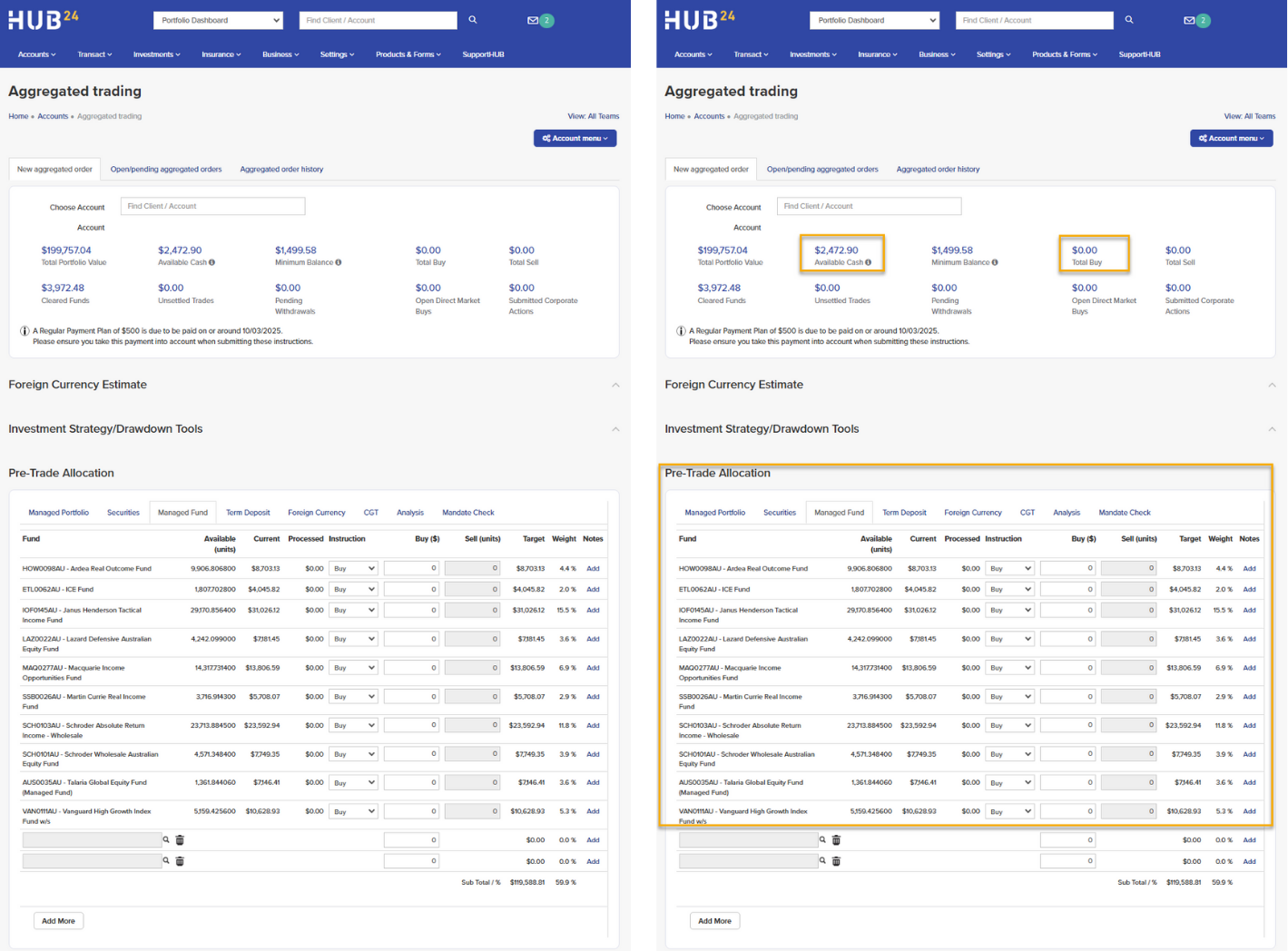
Once you’ve entered the trade details click proceed.
Before a trade is complete click on one of the following:
- Submit as pending: this means you’ll return later and finalise the trade.
- Submit as pending and email: as above but also notifies client of pending trade.
- Submit and authorise: authorise the instruction so the Operator can include the order in the next trade window.
- Trade report: performs a pre and post trade analysis for client if needed.
Generate a variety of client reports
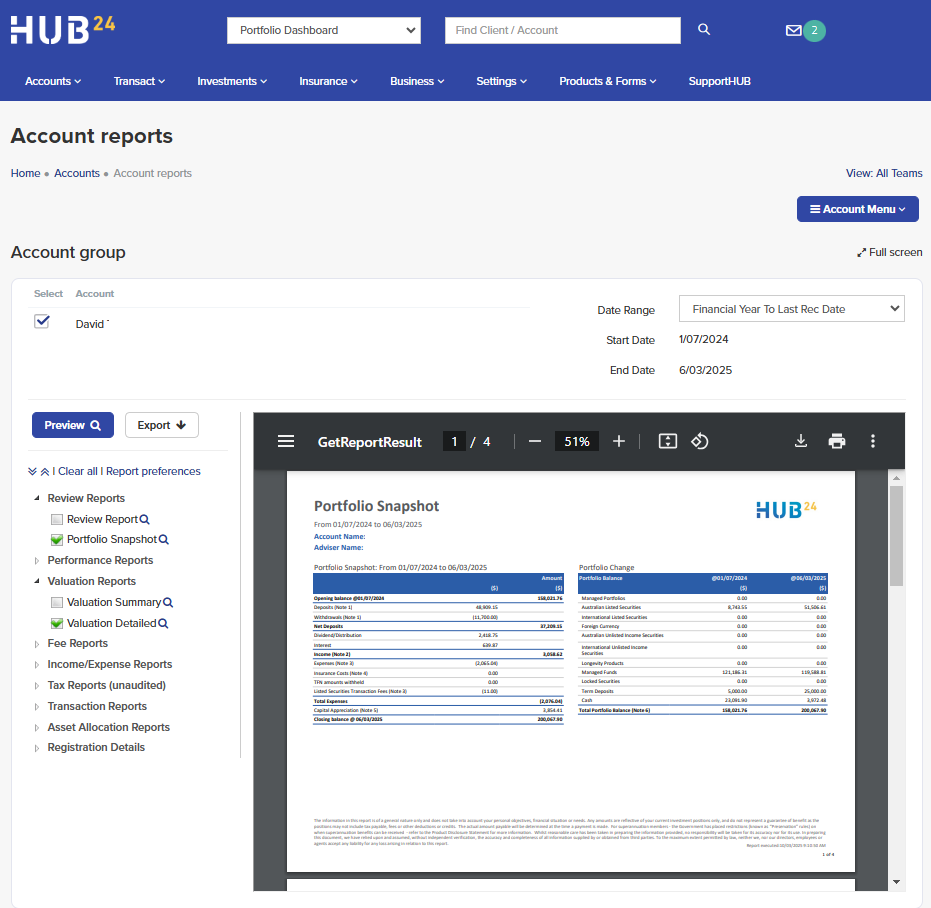
From your client’s Portfolio Dashboard, hover over the Account menu icon and select Account Reports under the Reports heading.
You can generate a range of reports; portfolio valuation, performance, cash and investment transactions, income and expenses plus much more.
Depending on your client’s needs, you can specify which reports are available for them to view on InvestorHUB.
More information: Refer to the Reporting guides on SupportHUB.
Notifications
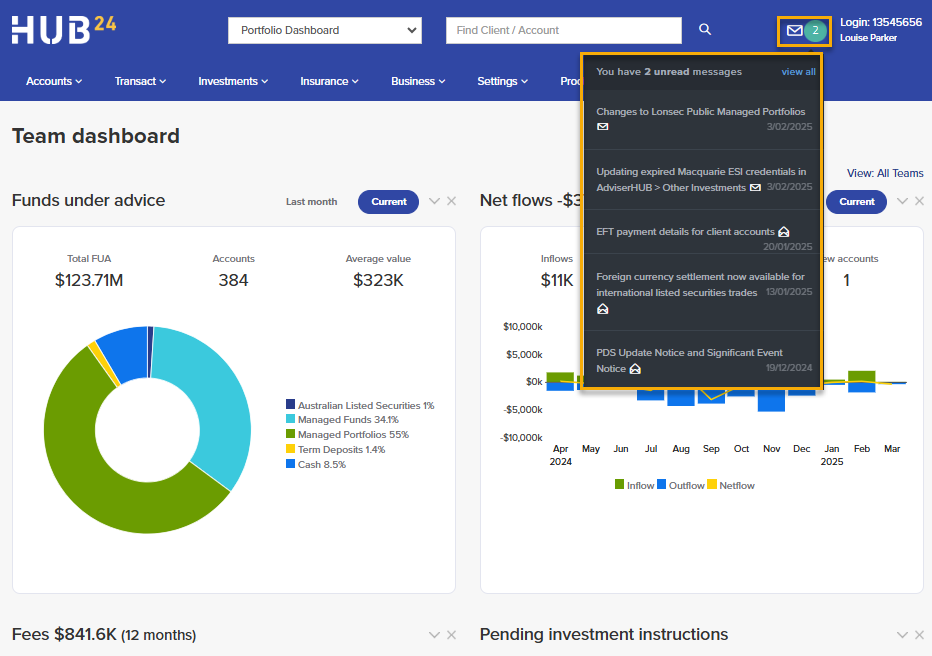
Stay up-to-date via AdviserHUB notifications. The notification centre on AdviserHUB keeps you informed about platform enhancements, new disclosure documents, corporate actions, super statements availability and other important platform updates.
When you log into AdviserHUB you’ll see a pop-up message letting you know there’s a new notification. You can also view all notifications by hovering over the envelope icon, then clicking view all.
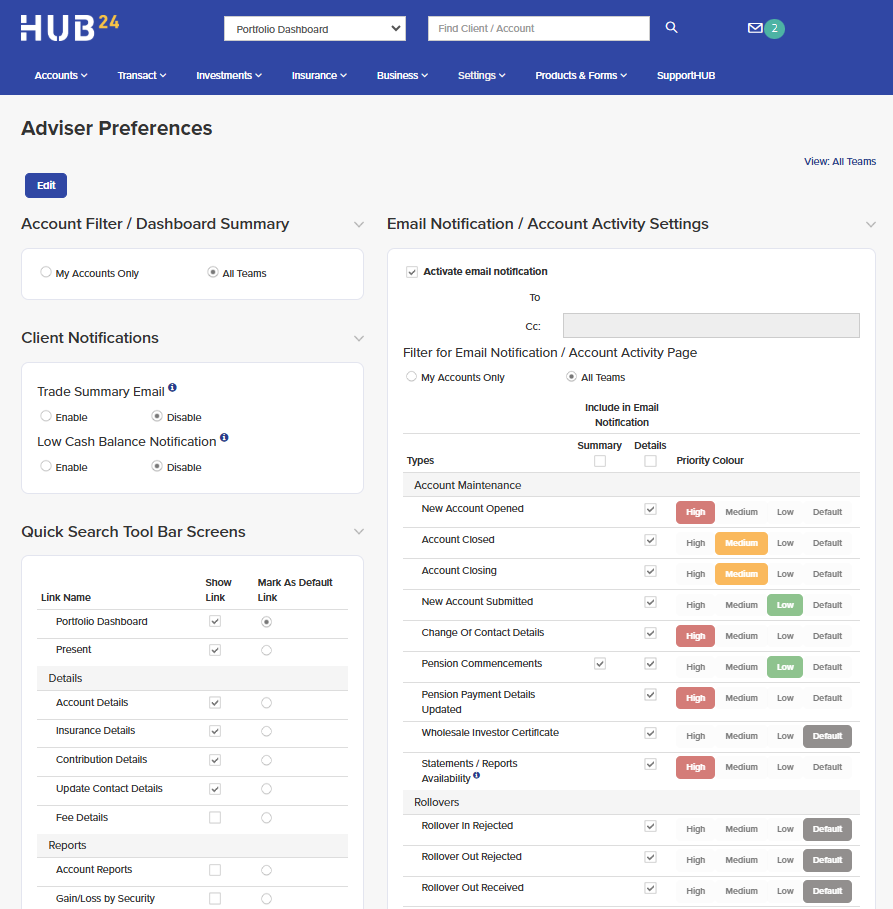
Stay on top of your work
Track all the activity on your clients’ accounts every day via one consolidated email from HUB24.
- Navigate to Settings > Adviser > Adviser Preferences.
- Select Edit.
- Update the notification settings including the daily email and priority.
- Select Save.
More information: Refer to the Adviser Settings guides on SupportHUB.
We’re here to help
Speak to our team
Make sure to check your messages on the AdviserHUB home page for information on new platform features as well as regular product updates and keep up to date with the latest news, views and platform enhancements via our monthly e-newsletter.
For more information or you would like to speak to our team, please reach out to your local BDM or TRM.
Support information
Use our SupportHUB help centre to access resources (process guides, FAQs, reference guides, videos and more) or log a support request or chat with our client services team.
When logged into AdviserHUB, you can access SupportHUB:
- Via the SupportHUB link,
- By clicking the SupportHUB menu in AdviserHUB, or
- By tracking previously logged requests from your AdviserHUB dashboard.
Note: You must be logged into AdviserHUB in order to access SupportHUB.
admin@hub24.com.au
1300 854 994
HUB24.com.au